
Leaf Browser Explained: Features, Security Risks and Best Alternatives
The average web user keeps over 20 tabs open at any given time, but power users and researchers routinely push that number into the hundreds. When standard browsers start to crawl under that weight, niche software pops up to solve the chaos.
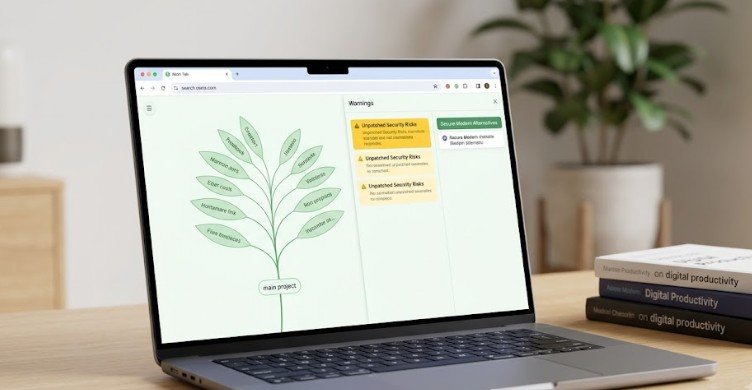
Enter the leaf browser, an open-source, Chromium-based tool built as a standalone Chrome application. It gained a quiet, cult-like following by turning standard browser tabs into a visual tree hierarchy.
If you are looking for simple ways to organize your digital workspace or cut down on computer lag, understanding how tools like the leaf browser function is a great starting point. However, beneath its clever interface lies a critical catch: using legacy or unmaintained software can expose your personal data to serious security risks.
Here is everything you need to know about how the leaf browser works, why it became popular, the safety concerns surrounding it, and the best modern alternatives available today.
What Is Leaf Browser and How Does It Work?
Leaf Browser was designed as an experimental, lightweight browser UI that operated inside the Chromium ecosystem. Instead of relying on traditional horizontal tab strips across the top of your screen, it introduced a panel-focused approach centered around organization and speed.
By decoupling itself from the default Chrome interface, it gave users a blank canvas to manage complex web sessions without opening dozens of separate browser windows.
Core Features That Made It Stand Out
- Tree-Structure Tabs: Active pages are organized into parent-child hierarchies. If you open three links from a main article, those links nest directly beneath it.
- Integrated Tab Unloading: To save system RAM, you can temporarily “freeze” or unload inactive tabs without losing their place in your tree.
- Unified Bookmarks and Tabs: It treats saved bookmarks and open sessions as the same structural element, removing the distinction between temporary browsing and saved links.
- Dynamic Renaming and Color-Coding: Users can manually rename tab titles and apply visual color tags to group tasks instantly.
Why Students and Developers Started Using It
While productivity enthusiasts loved the hierarchical workspace, the leaf browser quietly built another user base: students and software testers.
Because it ran as a packaged Chrome application window rather than a standard browser executable, it managed to run on restricted hardware like school Chromebooks. Many institutional content filters in the mid-2010s were set up to monitor standard browser windows. Packaged extensions often slipped past these basic filters, making it a popular workaround for bypassing school network limits.
For developers, its lightweight design offered a quick environment to run basic web scripts, test static HTML/CSS layouts, or isolate temporary browsing sessions without clogging their primary browser cache.
Security Warnings and Current Status
Despite its clever design, the original Leaf Browser project has largely been abandoned by its creators. It no longer receives active patch updates, code audits, or security maintenance.
The Federal Trade Commission (FTC.gov) regularly warns consumers that outdated software and unpatched browser extensions represent primary entry points for malware and identity theft. Without regular updates, legacy software leaves your machine exposed to known web vulnerabilities.
Key Risks of Using Outdated Browsers
- Zero Security Updates: Unpatched Chromium cores remain vulnerable to modern exploits and drive-by downloads.
- No Fingerprint Protection: It lacks modern anti-tracking features, canvas spoofing, or WebRTC masking, making your connection easy to track.
- Unencrypted Local Data: Session data and browsing history are stored locally without modern encryption standards.
- Network Compliance Bans: Most school districts and corporate IT departments explicitly block legacy browser tools to enforce network safety policies.
Modern Alternatives for 2026
If you want the organizational perks of the leaf browser without the security vulnerabilities, several modern tools offer superior performance and active safety features.
| Tool / Method | Best Use Case | Primary Benefit | Security Status |
| Horse Browser | Deep Research | Built-in hierarchical “Trails” | Actively Updated |
| Sidebery / TST | Custom Tab Trees | Deep tab nesting in Firefox | Open Source & Secure |
| OneTab | RAM Reduction | Converts open tabs into a text list | Lightweight Extension |
| Chrome Native Vertical | Daily Multi-tasking | Collapsible tab groups out of the box | Built-in / Full Security |
Quick Assessment: Do You Need a Tab Management Upgrade?
Run through this quick 4-point checklist to see if your current setup is slowing you down:
- The “Favicon Only” Strip: Do you have so many tabs open that you can only see their tiny icons?
- High Memory Usage: Does your computer fan start spinning loudly whenever you open a research workspace?
- Lost Context: Do you frequently open duplicate pages because you forgot you already had them loaded?
- Accidental Closures: Have you ever lost an hour of work by accidentally closing a window with 30 open pages?
If you checked two or more boxes, switching to a structured tab management extension or vertical layout will instantly streamline your workflow.
Simple Setup Guide: Setting Up Vertical Tabs Today
You do not need to install risky, unverified software to get a clean tree-style workflow. Research published by Stanford University (Stanford.edu) on human-computer interaction shows that organized visual workspaces reduce cognitive load and help users retain complex information faster.
Here is how to set up a clean, modern vertical tab layout using official browser settings:
- Update Your Browser: Ensure Google Chrome, Brave, or Microsoft Edge is updated to the latest release.
- Enable Vertical Layout: Right-click your top tab bar and select Turn on Vertical Tabs (or enable Vertical Tabs in settings).
- Create Tab Groups: Right-click an active tab, select Add Tab to New Group, and assign a name and color tag.
- Collapse Unused Groups: Click the color badge to instantly minimize entire project trees and free up visual space on your screen.
Frequently Asked Questions
1. Is Leaf Browser safe to use today?
No. Because it is an abandoned open-source project, it lacks modern security patches, bug fixes, and data encryption. Using it for daily browsing exposes your system to safety risks.
2. Can I still install Leaf Browser on Chrome?
While old source code repositories exist on developer platforms like GitHub, the tool is no longer actively maintained or recommended for general use on modern systems.
3. Why did schools block Leaf Browser?
Students frequently used its isolated Chrome app interface to bypass network filters on institutional Chromebooks, leading network administrators to ban the software across school networks.
4. What is the best alternative to Leaf Browser?
For visual tab hierarchy, extensions like Tabs Outliner or browsers like Horse Browser provide tree-style organization with modern security standards.
The leaf browser proved that web users desperately wanted a smarter way to handle tab overload. While its hierarchical trees and RAM-saving features were ahead of their time, using an unmaintained browser today is never worth the security trade-off. Modern browser updates and secure extensions now give you all of those tab-sorting perks safely. Upgrade your current setup with native vertical tools, keep your software updated, and enjoy a clutter-free web experience.

Related Posts

Cyberbackgroundchecks Exposed: How Your Private Life Ended Up Online and How to Scrub It

Mastering MyKaty Cloud: The Ultimate Access & Security Guide for Katy ISD Families