
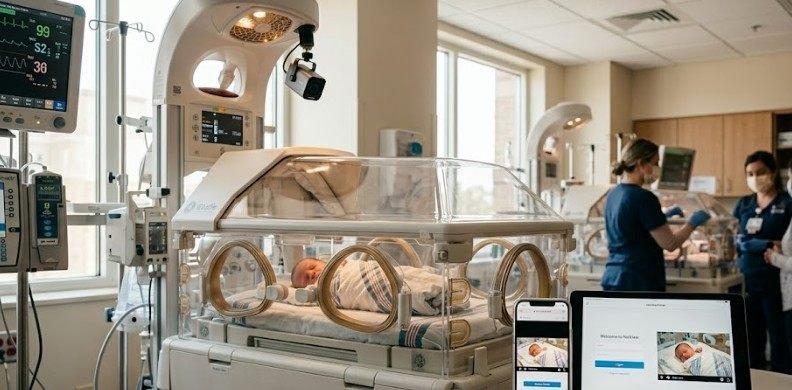
NicView Login and Setup: A Complete Guide to Staying Connected with Your NICU Baby
Leaving a newborn in the Neonatal Intensive Care Unit (NICU) is one of the most stressful experiences a parent can face. Clinical studies published by the National Institutes of Health show that up to 40% of NICU parents experience significant postpartum depression, while over 60% report severe anxiety during their baby’s hospital stay. The constant separation makes every hour feel like an eternity.
Webcam technology designed specifically for neonatal wards has fundamentally reshaped parental mental health in recent years. Understanding your nicview login and setup process ensures you never miss a moment of your baby’s care, offering a clear visual bridge when you cannot physically sit by the bedside.
What Is NicView and How Does Secure Streaming Work?
NicView is an encrypted, small-footprint video camera system mounted directly above or beside a infant’s incubator or crib. It gives parents, relatives, and loved ones a private window into the nursery from any location in the world using a web-enabled device.
Unlike consumer security cameras, NicView operates under strict medical privacy standards. The system streams secure video over a 256-bit SSL encrypted connection—the same security protocol trusted by financial institutions for online banking.
Here is what makes the technology unique:
- Live Visual Stream Only: The camera strictly transmits continuous visual data without audio recording capabilities. This protects the operational privacy of hospital staff and preserves surrounding patient confidentiality.
- Zero Saved Footage: The system does not save, store, or archive video clips. Once a stream passes, it is gone forever, ensuring zero digital footprint of your infant’s medical care remains online.
- Role-Based Access Control: Hospital staff maintain total physical control over camera placement, angling, and operational status at all times.
Getting Started: The Essential Setup Process
Before you can stream video of your newborn, your hospital’s nursing team must initiate your access. You cannot register or create an account independently through the public website without direct hospital onboarding.
1. Complete Consent Authorization
Hospitals require a signed electronic or physical consent form before activating any bedside camera. This document outlines your privacy rights, acknowledges that video feeds may be temporarily turned off during medical procedures, and grants authorization for designated family members to log in.
2. Receive Your Permanent Credentials
Once authorization is logged, your care team generates a unique username and password combination. Keep this printout, email, or text message safe:
- Unchanging Logins: Your credentials stay identical throughout your entire NICU stay.
- Shareable Access: You can share these exact details with extended family, grandparents, or close friends so they can view the baby from afar.
- No Password Resets Required: Because credentials are cryptographically tied to the bedside unit, you will not be prompted to construct complex passwords or rotate keys midway through your stay.
3. First-Time Portal Entry
Navigate to the official portal URL provided by your hospital (typically accessed via nicview.net). Enter your assigned credentials on your chosen device. Upon your initial access attempt from a new web browser, tablet, or smartphone, you will encounter a one-time consent confirmation popup. Review the terms, check the confirmation box, and your live feed will populate instantly.
Step-by-Step Login: Supported Devices and System Requirements
You do not need specialized software, native mobile apps, or high-powered hardware to stream live video.
Smartphone Access (iOS & Android)
- Open your native mobile browser (Safari for Apple devices, Chrome for Android).
- Type in the official access portal address provided by your hospital team.
- Input your assigned username and password into the secure fields.
- Accept the device agreement prompt to initiate live view.
Desktop and Tablet Access
- Open any modern standard web browser (Chrome, Edge, Firefox, or Safari).
- Ensure browser cookies and JavaScript are enabled in your privacy settings.
- Enter your login credentials to open the high-definition browser view.
Understanding Offline Messages and Privacy Modes
If you open your feed and see a blank screen, a generic message, or an offline indicator, do not panic. An offline feed rarely indicates a technical error or an emergency.
Clinical Care Holds
Nurses frequently pause the video feed during routine hands-on care. Feeding schedules, diaper changes, shift changes, physician rounds, and vital sign checks require camera blackout. This protects parental privacy while allowing staff to focus entirely on bedside medical attention.
Sensory Development Shields
Preterm infants require dark, quiet environments to mimic the womb and protect developing nervous systems. According to developmental guidelines published by the American Academy of Pediatrics, minimizing light exposure in the NICU supports critical brain development and rest cycles. If nurses place a heavy blanket or protective cover over the incubator, your screen will naturally darken.
Technical Troubleshooting and Support
If your feed fails to load outside of routine care windows, work through this quick diagnostic checklist before calling technical support.
| Step | Troubleshooting Action | What to Do |
| 1 | Refresh Browser | Clear the browser cache and re-enter your login details. |
| 2 | Check Wi-Fi/Cell Data | Verify your network speed. A minimum of 2.5 Mbps is required. |
| 3 | Try Private Browsing | Use private/incognito mode and disable browser extensions or ad blockers. |
| 4 | Test an Alternate Device | Switch from your smartphone to a tablet or laptop and try again. |
If basic troubleshooting fails to resolve connection issues, dedicated technical assistance is available 24/7. Call the official NicView Technical Support line directly at 1-855-642-8439.
Note: Technical support staff can resolve connection glitches, portal outages, and device compatibility issues. However, they cannot answer medical questions or provide updates on your baby’s physical condition.
Frequently Asked Questions
1. Can multiple family members log into NicView at the same time?
Yes. Multiple authorized users can log into the feed simultaneously from different locations using the exact same username and password without logging each other out.
2. Does NicView record or save video footage of my baby?
No. NicView provides live video streaming only. The system never records, stores, archives, or downloads video footage under any circumstances.
3. Why is my baby’s camera feed showing an offline message?
Feeds go offline during routine hands-on care, feedings, physical exams, or medical procedures. Check back in 30 to 45 minutes once clinical care wraps up.
4. Who do I contact if my NicView login credentials stop working?
If your username or password throws an error, contact your NICU nursing staff directly to verify your authorization status or call technical support at 1-855-642-8439.
Staying Connected During Your NICU Journey
Navigating a hospital stay with a newborn is an emotional journey filled with milestones big and small. While technology can never replace holding your baby skin-to-skin, having reliable access to your secure camera stream brings comfort, peace of mind, and continuous connection when you have to be away. By keeping your setup credentials accessible and understanding routine care offline windows, you can focus on what matters most—supporting your baby’s growth and recovery every step of the way.